以 DSP28377D 的 led 例程为例讲解如何使用调试器调试正在运行的程序。led 例程的路径为:
1
| C2000Ware_INSTALL_PATH\driverlib\f2837xd\examples\cpu1\led
|
下载程序到DSP
修改配置选项
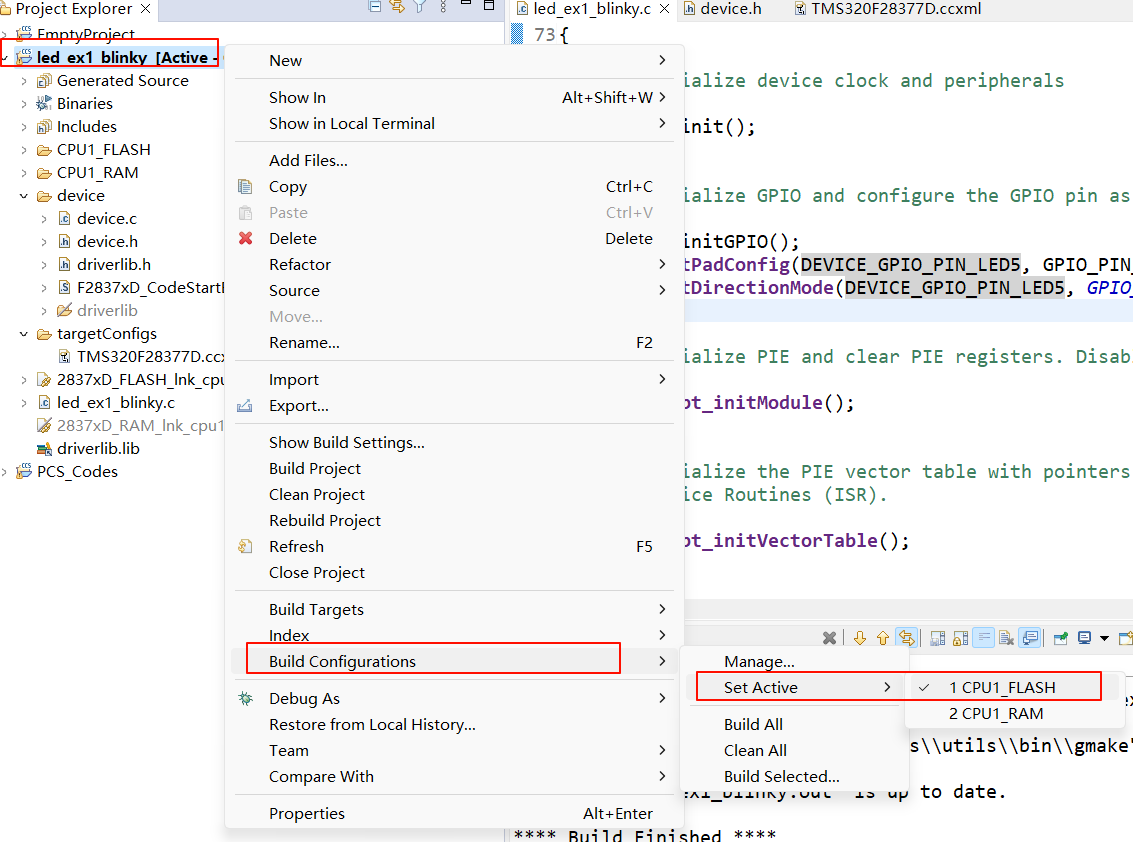
在 CCS 中导入官网 led 例程,将项目配置切换到 CPU1_FLASH。

根据实际的硬件接线图,修改 GPIO 引脚。本人开发板的 GPIO0 连接到了 LED 灯上,将原来的引脚修改为 GPIO0,修改后的 main 函数代码如下:
 1
 2
 3
 4
 5
 6
 7
 8
 9
10
11
12
13
14
15
16
17
18
19
20
21
22
23
24
25
26
27
28
29
30
31
32
33
34
35
36
37
38
39
40
41
42
43
44
45
46
47
48
49
50
51
52
53
54
55
56
57
58
59
60
61
62
63
64
65
66
67
68
69
70
71
72
73
74
75
76
77
78
| //
// Included Files
//
#include "driverlib.h"
#include "device.h"
//
// Defines
//
# define LOOP_COUNT 10
#define DEVICE_GPIO_PIN_LED5 0U
//
// Main
//
void main(void)
{
//
// Initialize device clock and peripherals
//
Device_init();
//
// Initialize GPIO and configure the GPIO pin as a push-pull output
//
Device_initGPIO();
GPIO_setPadConfig(DEVICE_GPIO_PIN_LED5, GPIO_PIN_TYPE_STD);
GPIO_setDirectionMode(DEVICE_GPIO_PIN_LED5, GPIO_DIR_MODE_OUT);
//
// Initialize PIE and clear PIE registers. Disables CPU interrupts.
//
Interrupt_initModule();
//
// Initialize the PIE vector table with pointers to the shell Interrupt
// Service Routines (ISR).
//
Interrupt_initVectorTable();
//
// Enable Global Interrupt (INTM) and realtime interrupt (DBGM)
//
EINT;
ERTM;
//
// Loop Forever
//
for(;;)
{
//
// Turn on LED
//
GPIO_writePin(DEVICE_GPIO_PIN_LED5, 0);
//
// Delay for a bit.
//
DEVICE_DELAY_US(500000);
//
// Turn off LED
//
GPIO_writePin(DEVICE_GPIO_PIN_LED5, 1);
//
// Delay for a bit.
//
DEVICE_DELAY_US(500000);
}
}
//
// End of File
//
|
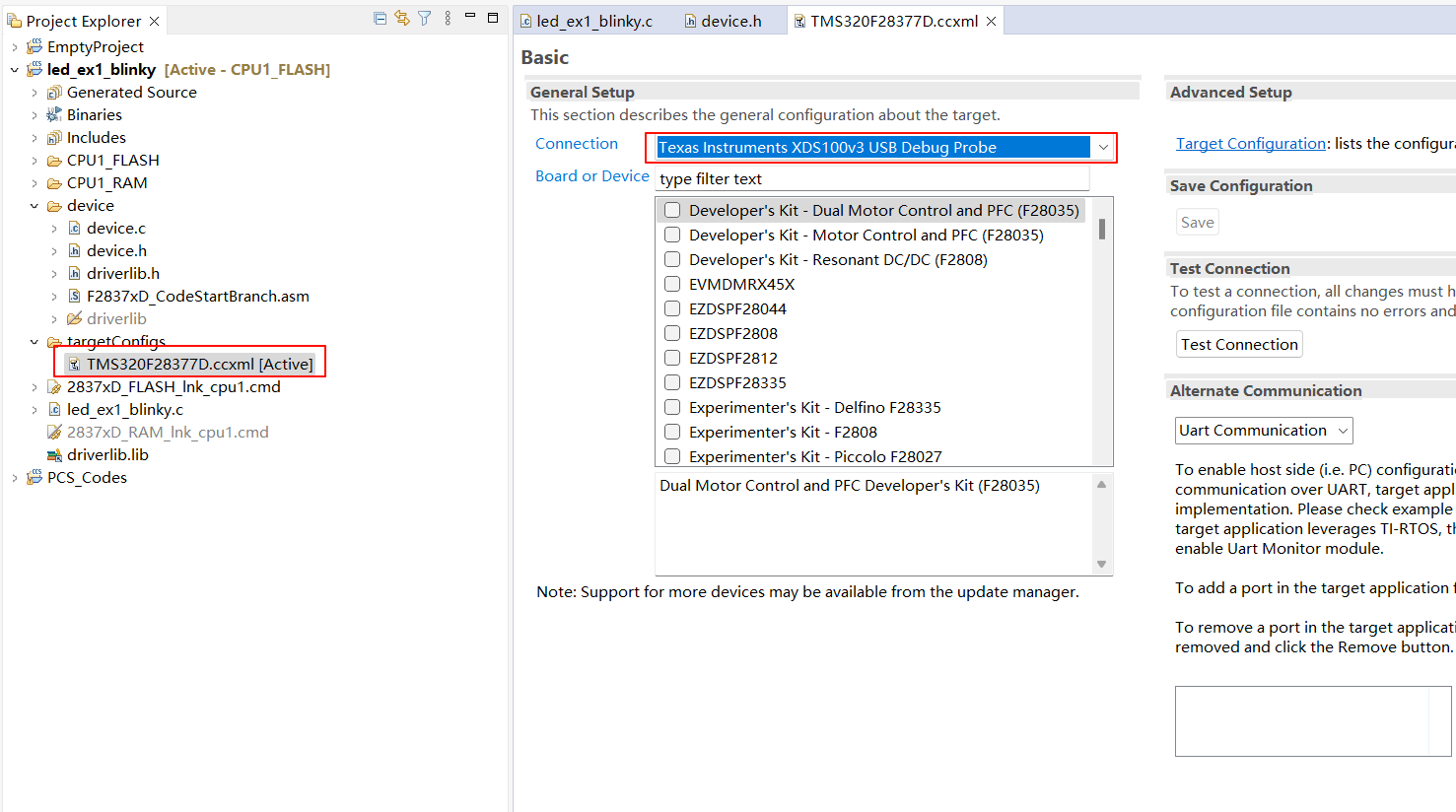
根据自己的烧录器修改 targetConfig 文件,这里选择 Texas InstrumentsXDS100v3。
点击按钮将程序下载到 DSP 中。下载完成后程序将自动运行,可以看见 LED 灯开始闪烁。
调试运行中的程序
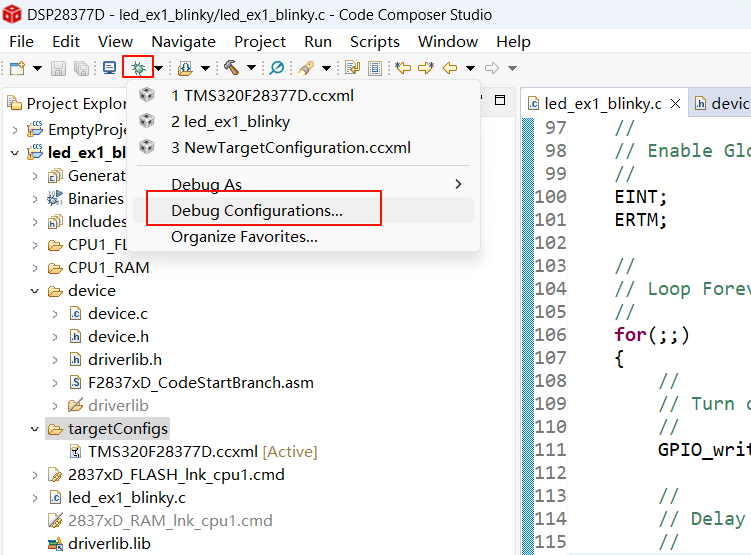
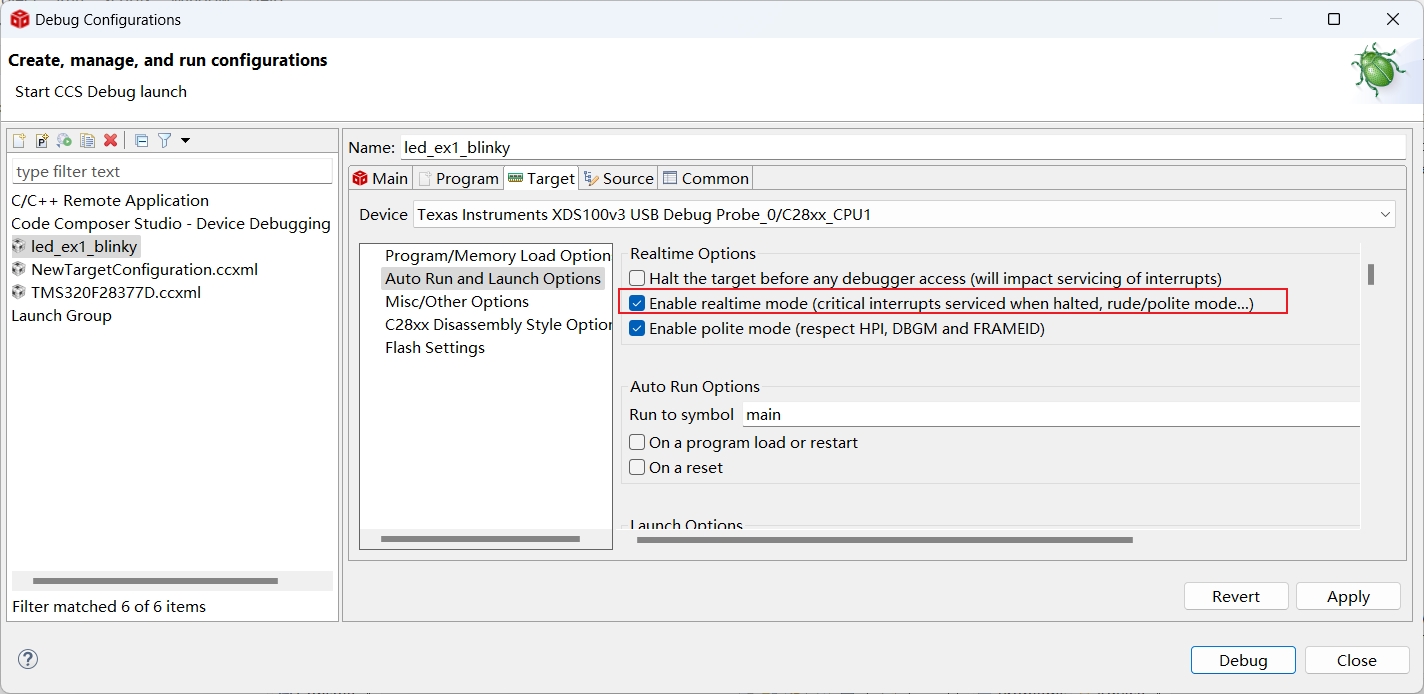
展开工具栏的按钮,点击 Debug Configuration… 选项,打开 Debug Configurations 窗口。
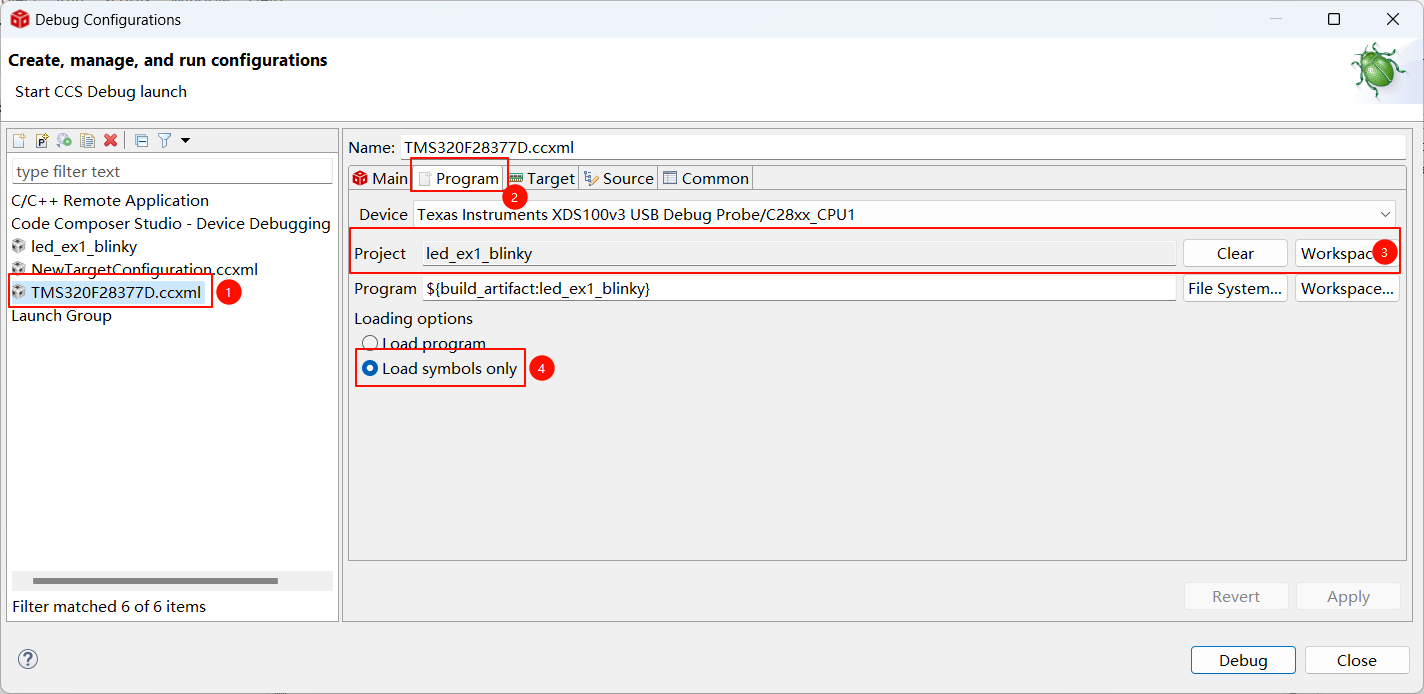
选择 Program选项卡,将 Project 修改为当前项目(led_ex1_blinky),修改加载选项为 Load symbols only。
点击 Apply 按钮后将保存配置。点击 Debug 按钮后开始进行调试,CCS将使用调试器连接到正在运行的程序。
重要
这里需要直接点击 Debug 按钮,而不是点击工具栏中的按钮。
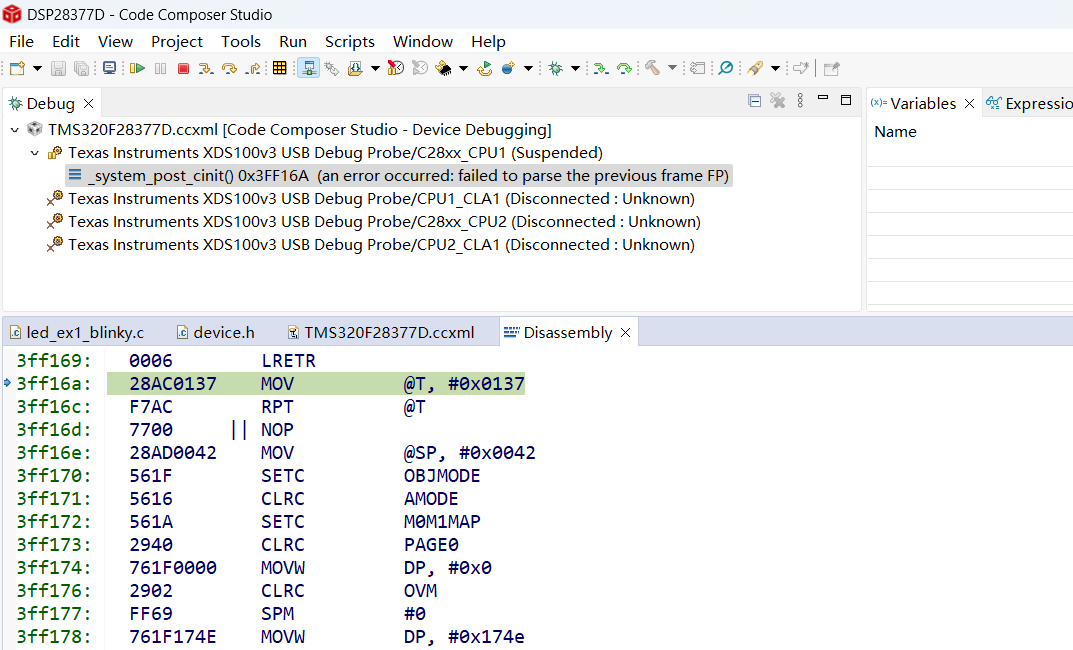
连接到程序后,程序将被中断。
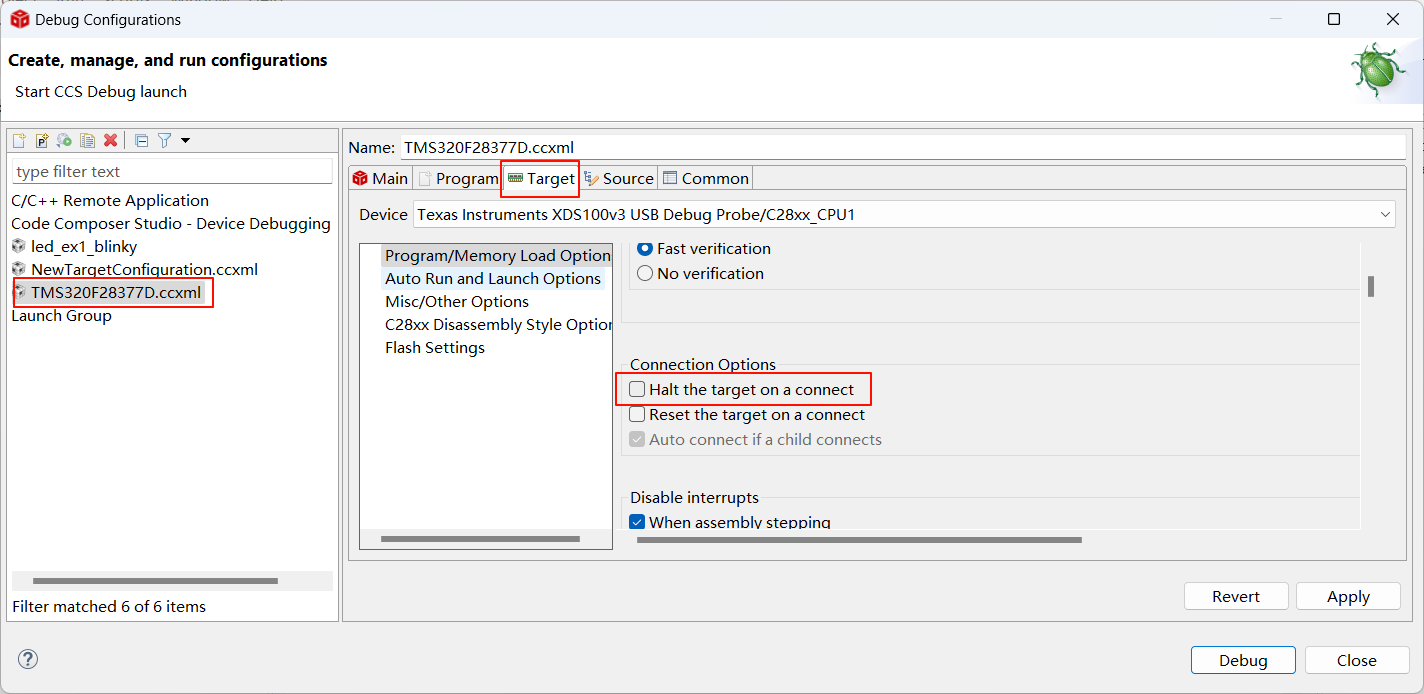
如果不想中断程序运行需要取消勾选 Target 选项卡中 Halt the target on a connect 选项。
点击 Debug 按钮后开始进行调试,调试器连接到运行的程序后将不会中断程序运行。在 DSP28377D 开发板上测试时发现程序依旧被打断。
继续查找官方参考资料[1],可知在关闭 Halt the target on a connect 选项前,需要开启实时调试模式。
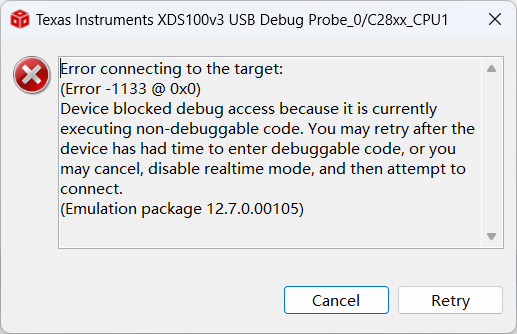
启用实时模式后继续调试,结果无法连接到设备了。
在非实时模式进入调试状态,可开启实时模式。但这样又无法满足不暂停设备进入调试模式的要求。
暂时没有弄清为何无法在实时模式下进入调试状态,待后续查找资料,更换开发板或调试器再尝试吧。。。
参考资料
[1] http://software-dl.ti.com/ccs/esd/training/modules/realtime_debug/sdoapps_mod_f28x_ccsv6_real-time-debug.pptx
 按钮将程序下载到 DSP 中。下载完成后程序将自动运行,可以看见 LED 灯开始闪烁。
 按钮,点击 Debug Configuration… 选项,打开 Debug Configurations 窗口。